
Filmora Mod Apk has grown well beyond the old three-step routine of choosing clips, adding music, and exporting the result. The Android editor still handles that simple job, though AI can now create the footage before the timeline is opened. A prompt, photo, storyline, or product image can supply the starting material. This Premium build opens its included paid tools alongside everything already available for free. That does not automatically mean unlimited AI credits or cloud assets, since some services still rely on Filmora’s servers.
A Prompt or Photo Can Supply the First Clip
Not every idea needs recorded footage. Text to Video works from a short description, while Image to Video starts with an uploaded photo. A full storyline is handled differently. Story to Video spreads the plot across separate scenes and builds the visuals and pacing around it. Marketing Video has a much narrower job: one product image goes into an AI template and becomes an ad draft. VideoGen comes in later, after something is already on screen. A written instruction identifies the element to add, replace, or transform.
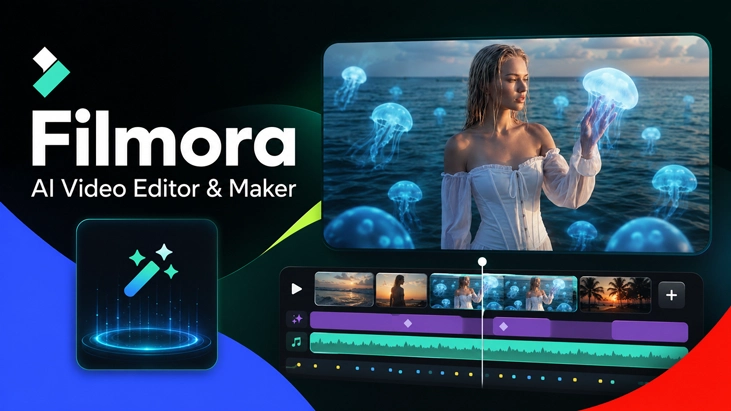
Auto Cut Handles the First Pass Through Recorded Footage
When the phone is already full of recordings, Auto Cut looks for highlights and assembles a rough version. That draft stays open for normal editing. Slow pauses can be trimmed, scenes moved, transitions changed, and a clip reversed when it plays better backward. Cropping and rotation deal with awkward framing, while templates provide a quicker way into the project. Video, images, text, and effects remain on separate tracks. So an adjustment to one layer does not flatten everything else. There is no need to export after every change, since the live preview shows how the current cut looks.
Smart Tracking Keeps Up When the Subject Moves
Place an effect over a face and it may drift away as soon as the person turns. Smart Tracking follows the chosen face, object, or target through the shot. Keyframes cover movement you prefer to set yourself, including changes in position, color, and effects. Speed Curve deals with pace rather than placement. Its preset and custom curves create speed ramps, slow motion, or time-lapse sections. AI Remover clears unwanted objects and backgrounds, while masks decide which parts of a layer remain visible. Blending then changes how those layers sit together. Still photos can receive an automatic zoom effect as well.
Subtitles Come From the Audio, Voiceovers From the Script
For spoken footage, AI Captions creates word-by-word subtitles in several languages. Narration begins at the other end. Write the script, choose a voice, and Text to Speech creates the audio track. Music can come from the royalty-free library or AI Music, which generates new tracks and sound effects. The soundtrack can still be adjusted manually. Once it feels right, Beat Sync lines the cuts up with the rhythm.
Check the Frame Before Saving a YouTube Edit
It is easy to miss the frame setting after spending most of the time on the actual edit. Leave it at 1:1 and the saved video stays square. For a regular YouTube upload, change it to 16:9 first. Then save the HD copy and post it to TikTok, Instagram, YouTube, or wherever else it is going.